
You have spent months building a brand. Then your customers get a WhatsApp message from your number and the first thing they ask is,
“Is this really you, or is it spam?”
That small blue tick (now shown as a blue verification badge in many interfaces, but still called the blue tick by most people) is Meta’s way of saying,
“Yes, this is the real business.”
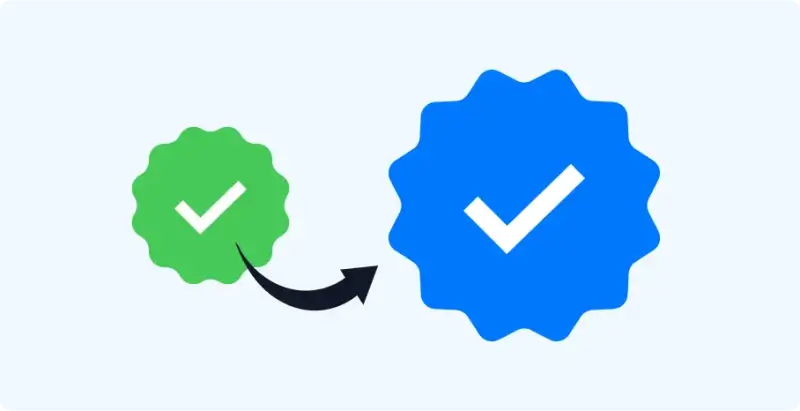
In this guide, I will walk you through what that badge actually means in 2025, who can realistically get it, and step by step what you need to do from the Meta and WhatsApp side. I will also show where Heltar can help and where only Meta has the final say.
Quick Summary and Key Takeaways
The “blue tick” on WhatsApp is an Official Business Account (OBA) badge for WhatsApp Business Platform users and a Meta Verified badge for eligible WhatsApp Business app users. Both are granted by Meta.
To even apply for the OBA badge you must:
Use WhatsApp Business Platform (Cloud API or via a provider such as Heltar)
Have a verified Meta Business Manager
Enable 2 step verification on your WhatsApp number
Follow WhatsApp Business Messaging and Commerce policies
Meta Verified for Business on the WhatsApp Business app is a separate paid program inside the app, where eligibility and rollout are controlled directly by Meta.
The blue tick does not change delivery, encryption or conversation pricing. It mainly boosts trust and shows your brand name instead of just a number.
1. What the WhatsApp blue Tick really means in 2025?
WhatsApp has two types of business accounts:
Business Account – the default state once you start using the app or platform for your business.
Official Business Account (OBA) – this is where you get the special verified badge and your business name is shown in the chat header, even if the user has not saved you.
Meta explains that the badge means the account has been verified based on the business’s activity and the information or documents they provide. On top of this, Meta is rolling out Meta Verified for Business on WhatsApp inside the WhatsApp Business app. That is a subscription product, with its own checks and eligibility, and it also gives a verification badge.
For most API users and mid to large brands, when people say “blue tick” they mean the OBA badge for WhatsApp Business Platform.
2. Who can realistically get the Blue Tick?
Meta’s own documentation and partner guides are very clear on one point:
The business must be notable, well known and frequently searched, and must have a verified Meta Business account.
In practice, this means:
Your business is covered by press articles, industry listings, or has strong public presence.
You are a registered legal entity, not an individual.
You already use WhatsApp Business Platform (Cloud API or through a provider).
Your Meta Business Manager is verified with official documents.
You follow WhatsApp Business Messaging and Commerce policies, with no serious violations.
Very small local businesses without any public presence or media coverage often struggle to get the OBA badge, even if everything is technically correct.
3. Path 1 – Official Business Account (blue tick) with WhatsApp Business Platform
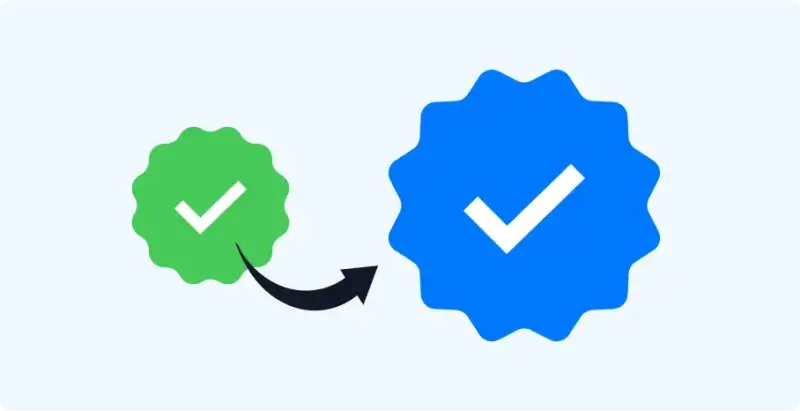
This is the main path for brands using Heltar and other API setups.
Step 1 – Set up WhatsApp Business Platform correctly
You must have a WhatsApp Business Account connected to the Business Platform. That means:
A WhatsApp business account (WABA) under your Meta Business Manager.
At least one registered business phone number connected to the API (Cloud API or via Heltar).
If you are starting from scratch, this is exactly where Heltar helps: getting your WABA live, connecting the phone number, and making sure business details are correct and policy safe.
Step 2 – Verify your Meta Business Manager
Meta will not approve the badge if your Business Manager is not verified. Verification means:
Submitting company documents (registration certificate, tax documents, etc.) inside Business Manager.
Waiting for Meta to confirm that the business is legal and real.
Without this, your blue tick request is not processed.
Step 3 – Turn on 2 step verification for your WhatsApp number
Meta and providers strongly recommend enabling 2 step authentication on the phone number that uses WhatsApp Business API. It proves that you control the number and prevents hijack attempts.
Step 4 – Build a clean track record
Meta expects you to be a real, active business on WhatsApp Business Platform, not a just created account. Common expectations in partner guides include:
Being registered on the platform for at least 30 days.
Using the account regularly with policy compliant templates and good quality rating.
At Heltar, we usually suggest brands first fix basics: clear business profile, correct website and email, and templates that follow WhatsApp’s marketing and service rules.
Step 5 – Submit the Official Business Account request
You do this inside Meta Business Manager, not from the app:
Log in to Meta Business Manager.
Go to Business Settings.
Click WhatsApp Accounts, select your WABA.
Under Settings or Phone numbers, look for the option to Request Official Business Account (sometimes shown under support or account status).
Fill in the form with:
Your key brands and products
Links to press coverage, listings, and other public sources that prove notability
Then submit and wait.
Step 6 – Wait for Meta’s review and handle rejection if it comes
Most partner guides say Meta’s review can take a few days. If they reject the request, you can usually reapply after 30 days, once you have stronger public presence or fixed any issues. Heltar cannot override Meta’s decision, but we can help you understand the reason and prepare a stronger next application.
4. Path 2 – Meta Verified for Business on WhatsApp Business app
If you use the WhatsApp Business app, Meta is rolling out a paid product called Meta Verified for Business on WhatsApp.
The high level steps, based on Meta’s help content, are:
Open the WhatsApp Business app.
Go to Tools or Settings.
Tap Meta Verified.
If it is available to you, follow the steps, choose a subscription plan, and link your business accounts as prompted.
If you do not see Meta Verified inside the app, it simply means Meta has not rolled it out for your account or region yet. This path is handled fully inside the app and is separate from the OBA badge on the Business Platform.
5. What the blue tick does and does not change
It is important to set expectations correctly.
What changes?
Your business name shows in big text in the chat header, even if the user has not saved your number.
A verification badge appears next to your business name in the chat list and contact view.
Users are more likely to trust that they are talking to the real brand, so open and reply rates can improve.
What does not change?
End to end encryption remains the same.
Conversation charges and template rules remain the same.
You still need user opt in and you still have to follow WhatsApp’s Business Messaging and Commerce policies.
So the badge is best seen as a trust and branding layer, not a shortcut around rules.
6. How Heltar can help with your Blue Tick plan?
Heltar cannot “sell” the blue tick to you. No provider can, because the decision sits with Meta.
What we can do is:
Set up and manage your WhatsApp Business API account in a policy safe way.
Guide you on templates, opt in flows, and message categories so your account maintains a strong quality rating.
Help your team collect the right documents and public links before you file the OBA application.
Build campaigns and automation flows that keep working even if you never get the badge (which is a real outcome for many smaller brands).
In short, Heltar handles the WhatsApp plumbing and campaigns, while Meta handles the verification decision.
Final Note
Getting a WhatsApp blue tick in 2025 is a realistic goal only if your brand is already visible and verified in Meta’s eyes. The badge can boost trust, but it does not replace solid campaigns, fast replies, and clear opt in flows.
If you want help setting up WhatsApp Business API, keeping things policy safe, and planning for a future blue tick application, book a demo with Heltar. We will walk you through your current WhatsApp setup, suggest clean next steps, and handle the technical work so your team can focus on talking to real customers.