
There has been a lot of noise around n8n lately. Every second tech friend seems to be asking the same thing: “Can I plug WhatsApp into n8n for real workflows, and how do I set it up?”
When we searched for a clear walkthrough, most guides skipped the painful parts: Meta setup, API keys, access tokens, and how all of that maps into n8n credentials. So at Heltar, we wired it up ourselves and wrote down every step. This guide focuses on one thing only: how to connect WhatsApp Cloud API to n8n in a clean, repeatable way. Once this is done, you can use it for chatbots, alerts, lead routing, or anything else.
What you will set up?
By the end of this guide, you will have:
A Meta app with WhatsApp Cloud API enabled.
A test WhatsApp number from Meta that talks to n8n.
Two n8n credentials:
One OAuth credential for the WhatsApp Trigger node.
One API key credential for the WhatsApp Business Cloud node.
A simple n8n workflow that:
Receives a WhatsApp message.
Sends a basic reply back.
No AI, no extra logic yet, just a clean connection.
What you need before you start?
You will need:
n8n Cloud account
Self hosting works too, but for webhooks and triggers you need a secure public URL. n8n Cloud gives you that out of the box.Meta developer account
This is the account you use on developers.facebook.com for apps.Meta business portfolio (Business Manager)
WhatsApp Cloud API requires a business portfolio, not just a personal profile.Basic comfort with n8n UI
You should know how to create workflows and add nodes.
Step 1 – Set up Meta developer and business access
Go to Facebook for Developers and log in.
If you have never used it before, click Get Started and follow the steps to create a developer account (phone verification etc.).
Open Meta Business Suite and either:
Use your existing business portfolio, or
Create a new business portfolio with your business name and email.
Keep this simple: one Meta account, one business portfolio, one app.
Step 2 – Create a WhatsApp app and get test assets
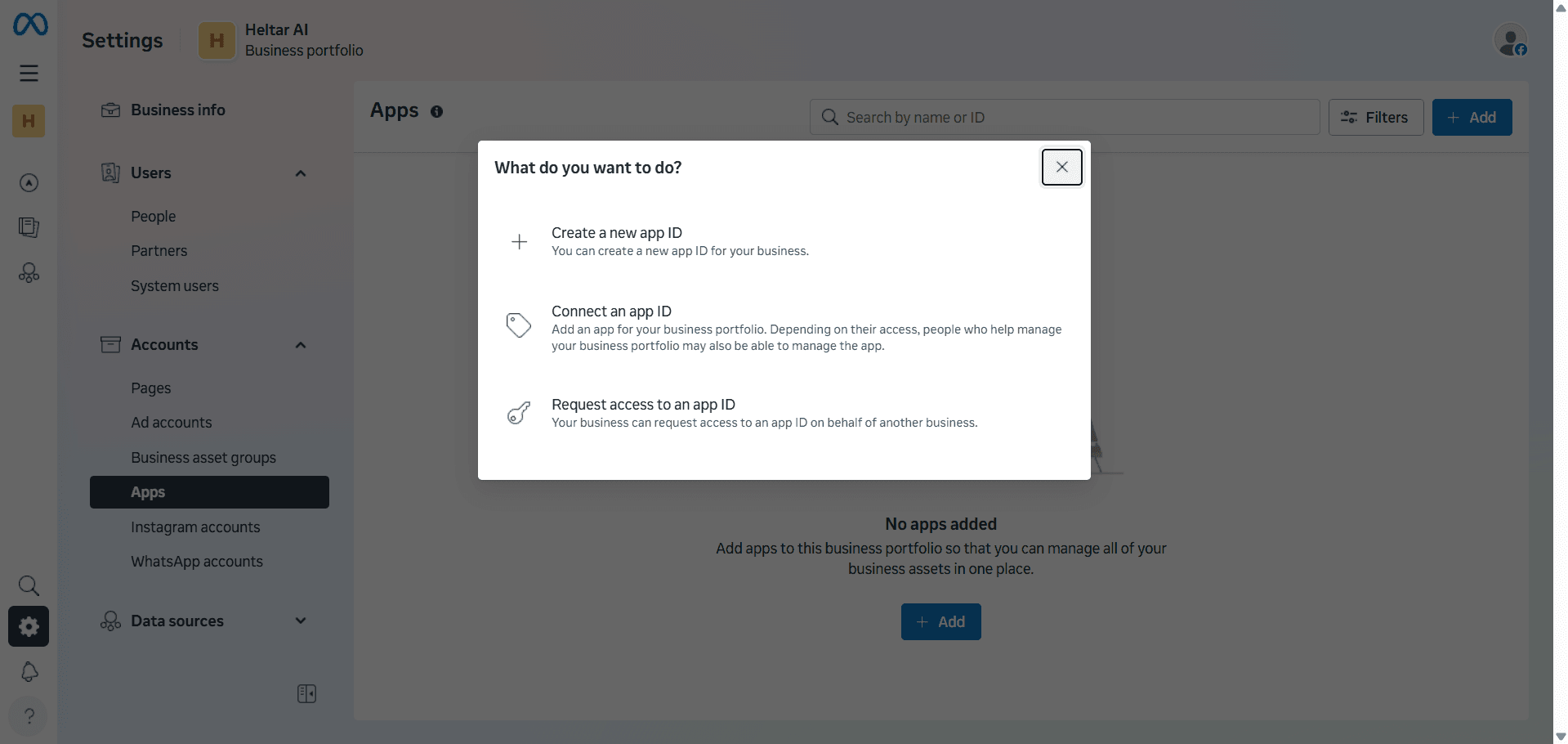
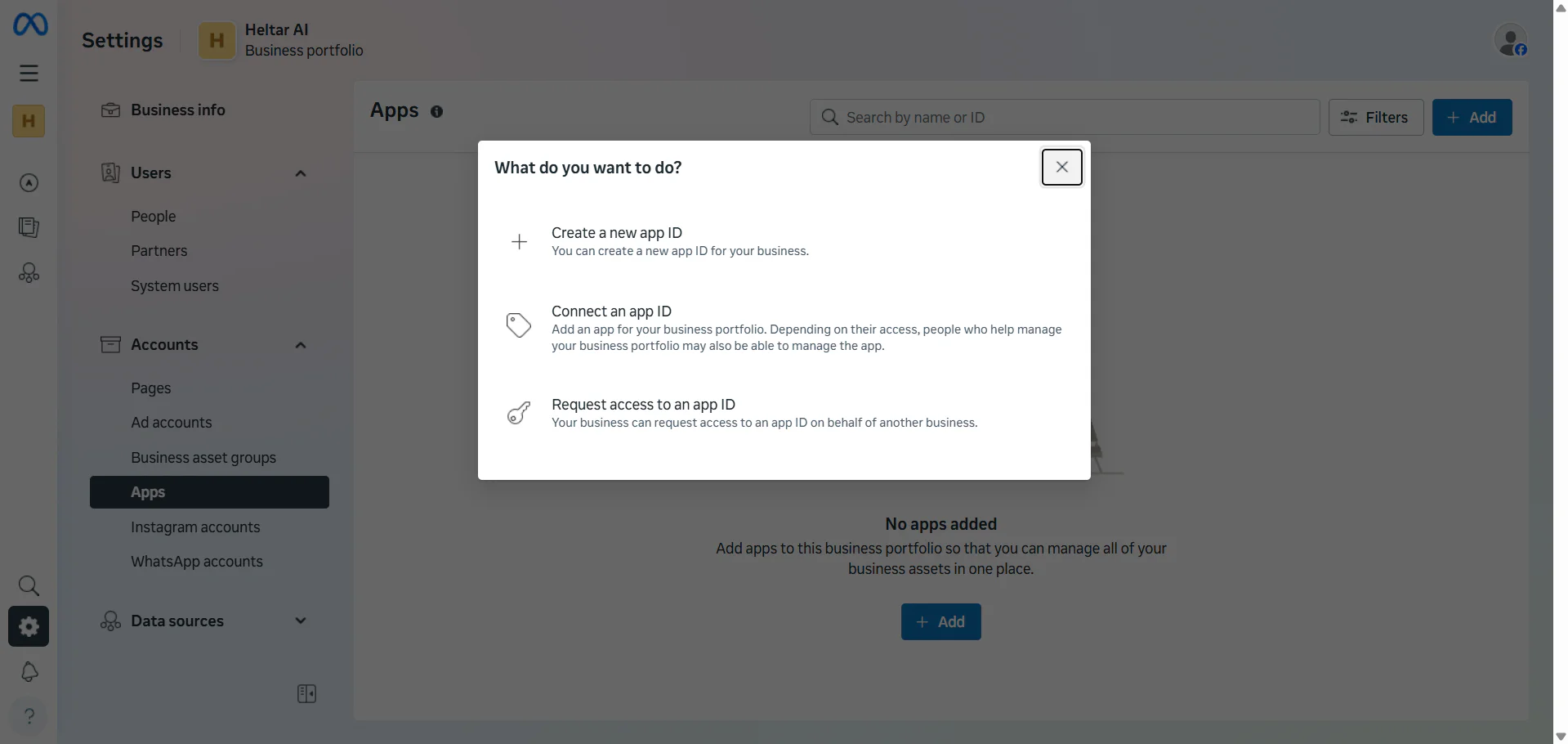
On the Apps dashboard in Meta for Developers, click Create app.
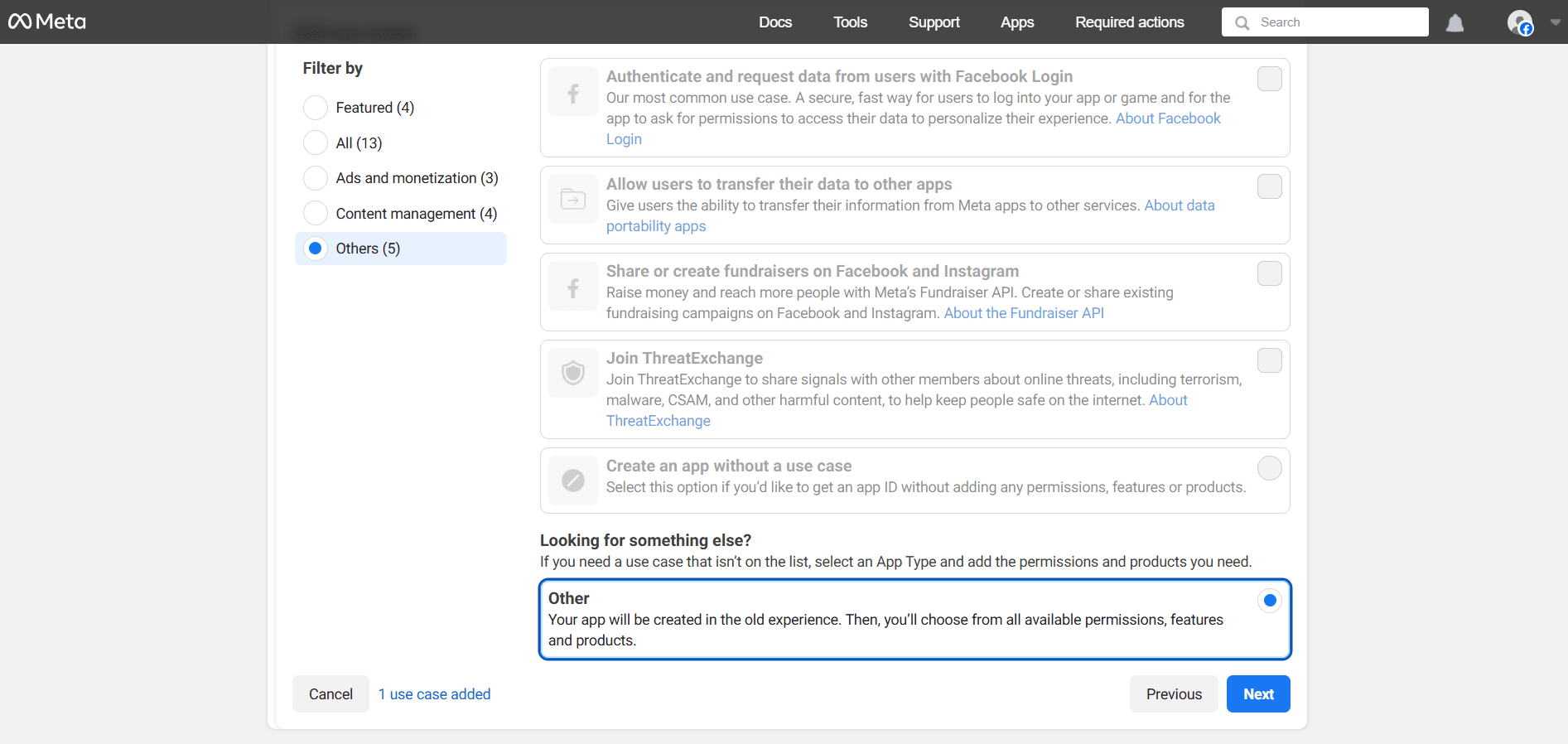
For use case, pick Other, then continue.
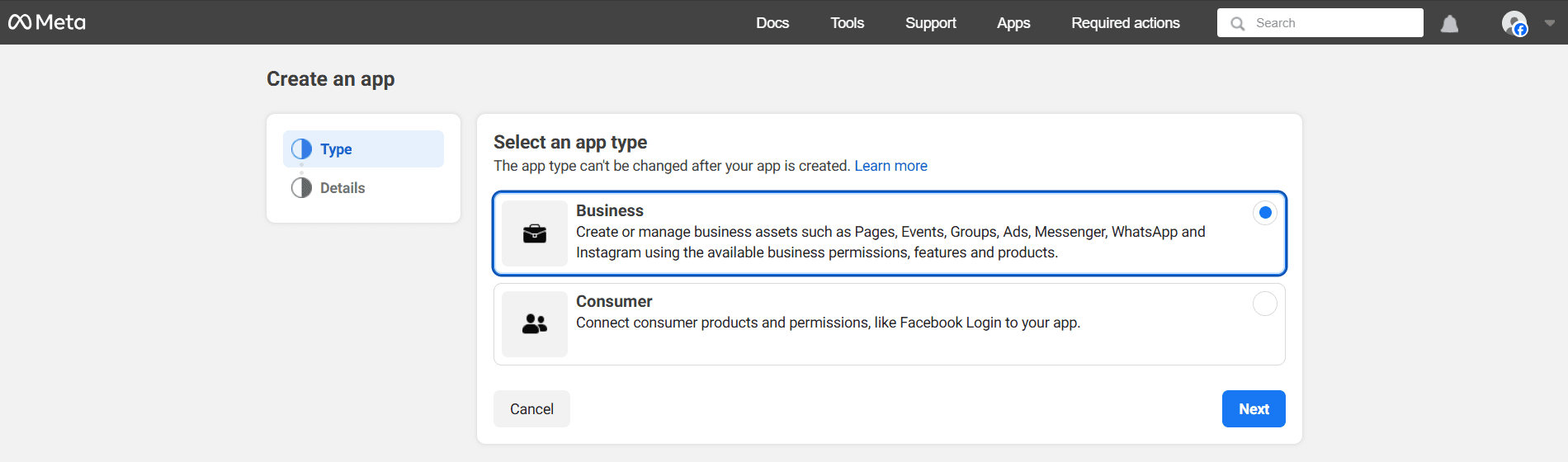
Choose Business as the app type.
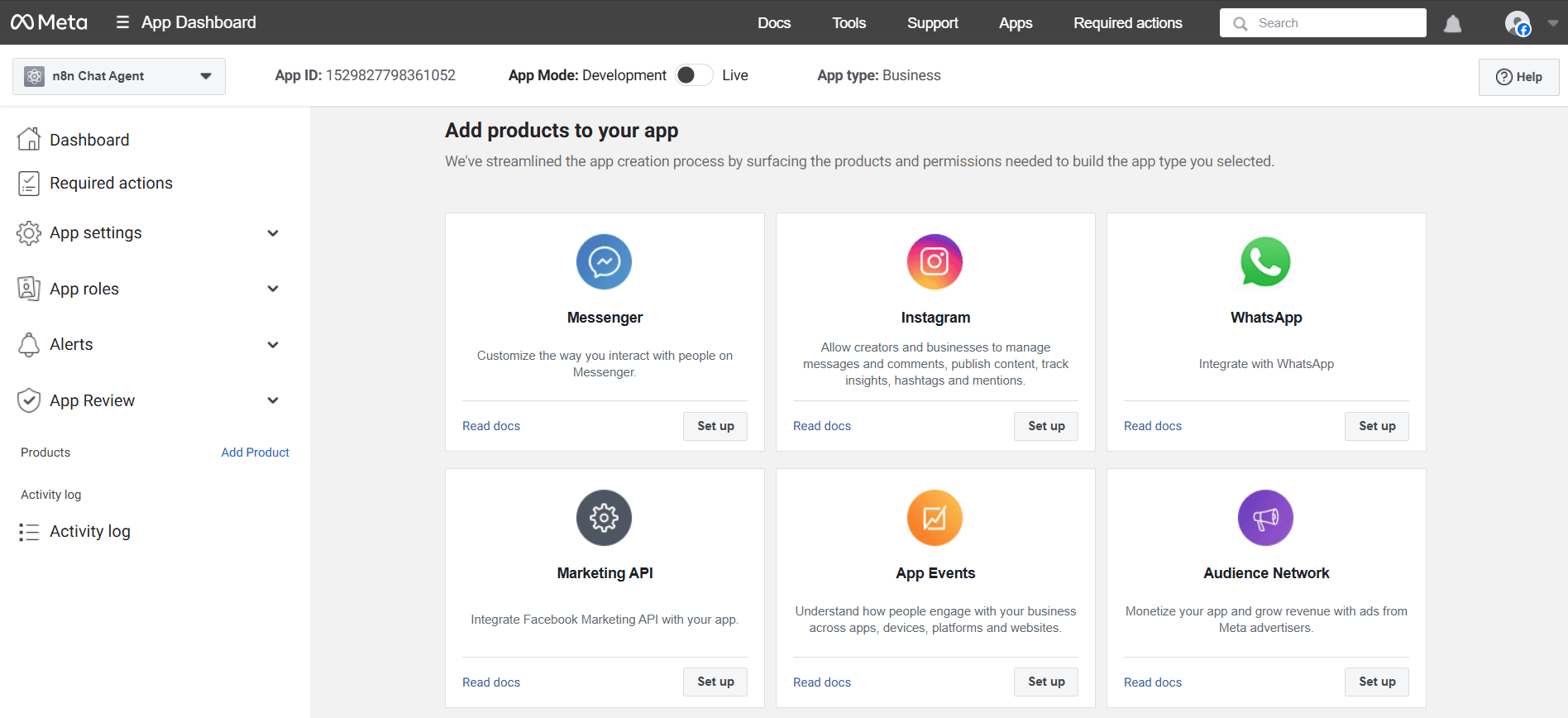
- Give the app a clear name, select your business portfolio, and create it.
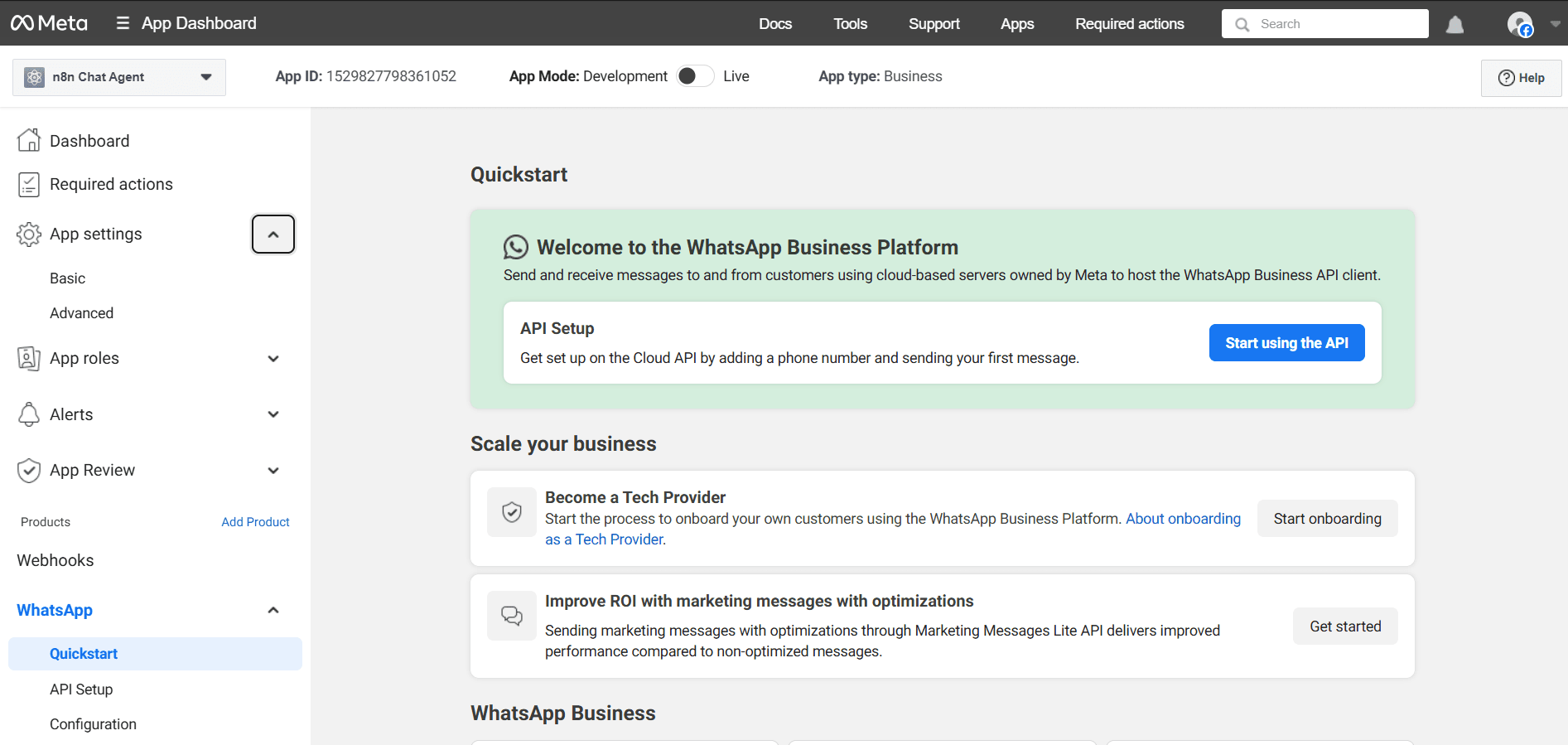
Inside the new app, on the left sidebar, click WhatsApp and then Set up.


This lands you on the WhatsApp Cloud API Quickstart page where Meta gives you:
A test phone number
A sample recipient number field
A temporary access token
Your WhatsApp Business Account ID
You will use all of these inside n8n.
Step 3 – Collect App ID and App Secret
n8n needs your App ID and App Secret for OAuth credentials (used by the trigger).
In your app, go to App settings > Basic in the left sidebar.
Copy:
App ID
App Secret (click Show first)
Store them safely. You will paste:
App ID into Client ID in n8n
App Secret into Client Secret in n8n


While you are here, set a simple Privacy Policy URL to keep Meta happy. A basic policy page on your site is fine for tests.
Step 4 – Generate access token and find Business Account ID
Next, you need a token for sending messages and the business account ID that owns WhatsApp.
In the left sidebar, click WhatsApp > API Setup.
You will see:
Temporary access token
WhatsApp Business Account ID
Test phone number
Copy the access token and business account ID and keep them handy.
From n8n’s own docs, these two values are exactly what the WhatsApp API key credential expects:
Access Token → Access Token field
WhatsApp Business Account ID → Business Account ID field
Step 5 – Create WhatsApp credentials in n8n

Open your n8n instance. Go to the Credentials section in the left menu. You will create two credentials.
5.1 OAuth credential for triggers

This is used by the WhatsApp Trigger node.
Click New credential and search for WhatsApp OAuth API or WhatsApp Business Cloud (OAuth2), depending on your n8n version.
In the form:
Client ID → paste your App ID
Client Secret → paste your App Secret
Set the proper OAuth scopes if n8n asks; usually this is prefilled for WhatsApp.
Save, then click Connect or Test
n8n will open a Meta login window, you approve the app, and n8n stores the token for the trigger.
5.2 API key credential for actions
This is used by the WhatsApp Business Cloud node for sending messages.
Click New credential and search for WhatsApp Business Cloud or WhatsApp API.
Choose API key method.
Fill in:
Access Token → paste the access token from WhatsApp API Setup
Business Account ID → paste your WhatsApp Business Account ID
Save and test. You should see a success message if the token is still valid.
You now have everything n8n needs.
Step 6 – Add the WhatsApp Trigger node
Time to connect inbound messages.
In n8n, click Create workflow and start from blank.
Add a node and search for WhatsApp or WhatsApp Trigger. Select WhatsApp Trigger.
In the Credentials dropdown, pick the OAuth credential you created in Step 5.1.
Leave default settings for event type as Messages for now.
When you later click Execute workflow, n8n will register a webhook URL with Meta using that OAuth token. You do not have to copy webhooks manually; the node handles it.
Step 7 – Add the WhatsApp Business Cloud send node
Now add the sender that replies back.
Add a new node, search for WhatsApp Business Cloud, and choose the standard action node (not the trigger).
Operation → Send message.
Credentials → select the API key credential from Step 5.2.
Set parameters:
From (phone number id) → select the test phone number id from the dropdown, or paste it if needed. Some users need to set this as an expression using phone_number_id from the trigger output.
To (recipient) → for first test, type your own phone number in full international format, for example
14155550123.Message type → Text.
Text body → something like 'Message received from n8n.'
Connect the Trigger node to this send node.
A basic flow now looks like: [WhatsApp Trigger] -> [WhatsApp Business Cloud (Send message)]
Step 8 – Test the full loop
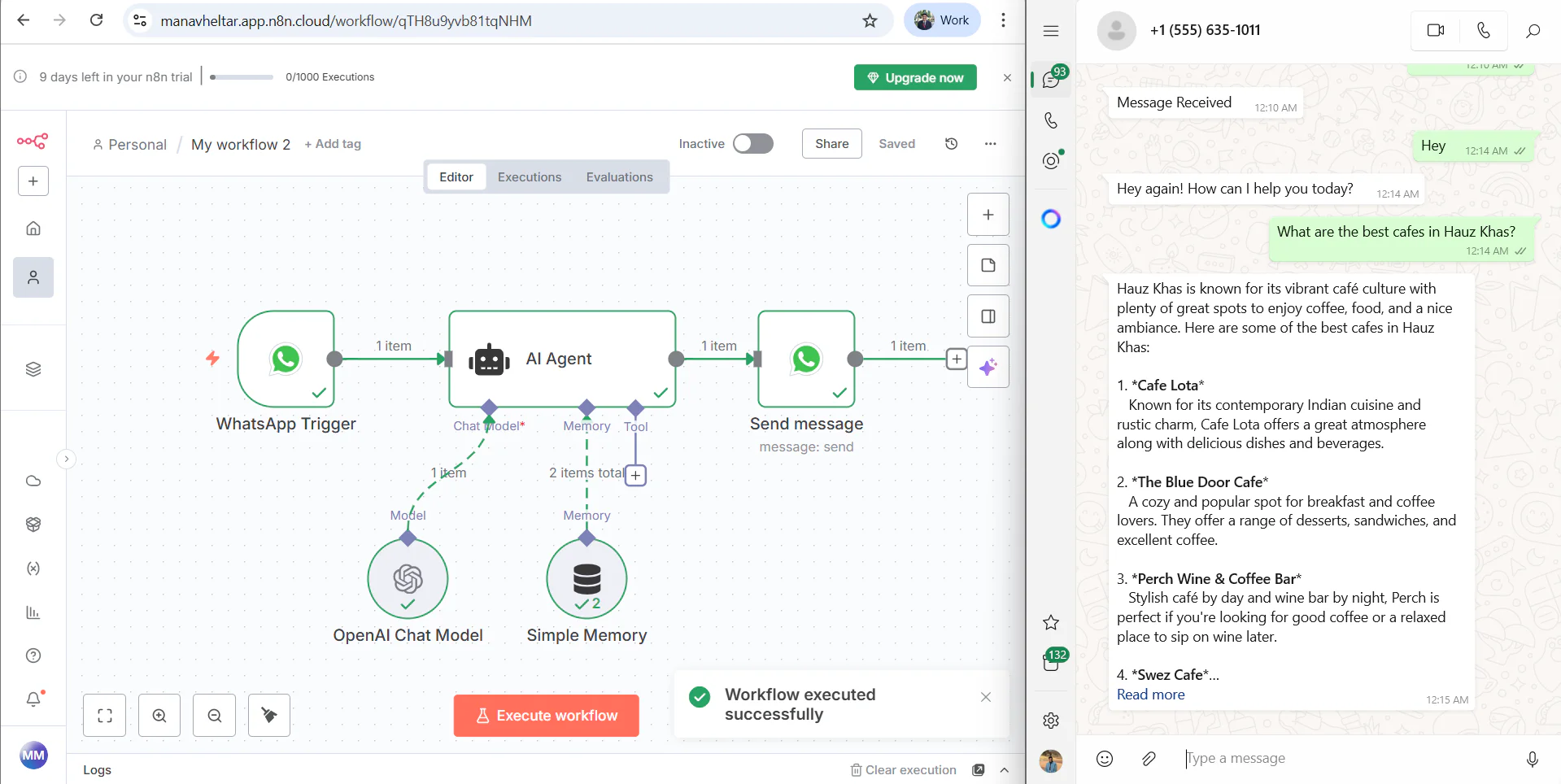
In n8n, click Execute workflow.
On your phone, open WhatsApp and send a text to the test number shown in Meta’s API Setup.
If everything is wired correctly:
The Trigger node fires and shows execution data.
The Send node runs and sends your reply message back to your phone.
If you see a Bad request, check parameters error, double check the recipient number format and message fields. The n8n docs for WhatsApp Business Cloud list this as the most common mistake.
At this point, n8n and WhatsApp Cloud are linked. You can now change the To field to pull from the trigger data so that the reply goes back to the sender, for example { { $json.messages[0].from } } or similar, depending on how n8n formats the payload.
Is n8n alone enough for real WhatsApp operations?
Short answer, No for most teams. n8n is great for a demo or a tiny workflow, but day to day business needs are bigger and stricter.
Why n8n alone breaks in practice?
You need many flows at once, not one bot. Real chats fan out by keyword, menu, language, locale, and stage. Keeping dozens of n8n flows in sync is hard and fragile.
You need bulk and broadcast. WhatsApp allows bulk only with approved templates and user opt-ins. Managing templates, approvals, variables, and opt-outs inside n8n quickly becomes messy.
You must follow the 24-hour service window. After 24 hours you can reply only with templates, managing and keeping track of this while automating with n8n is hard.
Sales needs a shared inbox. n8n is a workflow tool, not a team inbox. You cannot assign chats, add notes, tag leads, or see who replied last without building a lot around it.
You need reporting and control. Delivery, read rates, template failures, number quality, blocks, consent status, audit trails, and retries are all required. Stitching this in n8n is heavy.
Why businesses need a provider to do this for them?

Heltar is a WhatsApp Business API provider built for these needs.
Shared inbox, roles, and assignments so sales can work from one place.
Automation inside the inbox, plus quick setup for keywords, menus, and forms. You can create a WhatsApp chatbot using a drag-and-drop, no-code chatbot builder. Just one AI prompt, and you have your automation ready to be deployed. You can't get this luxury on n8n.
Template workflows for approval, variables, and safe bulk sends. You create templates and get them approved within seconds, ready to be launched as part of bulk messaging campaigns.
Campaigns and segments with schedules and rate control. Schedule and Fire any campaign in less than a minute, marketing made simple!
Live reports for delivery, reads, failures, leads, and outcomes.
CRM and data hooks without glue code.
Best of both worlds
You can still use n8n for back-office logic, data cleaning, and custom steps, while Heltar handles WhatsApp delivery, inbox, teams, and compliance. That split keeps your flows flexible and your chat stack stable.
Bottom line
If you are testing, n8n alone is fine. If you are running sales or support, use a WhatsApp Business API provider. Heltar gives you the inbox, automation, bulk, and controls you need, so your team focuses on closing leads, not babysitting bots.