
If your leads live in HubSpot but your customers reply faster on WhatsApp, every delay between the two costs you money. A deal moves to “Won” in HubSpot, a support ticket is marked “Resolved”, or a high intent form gets filled, and nothing reaches the customer in real time. That is where WhatsApp alerts from HubSpot make a real difference.
In this guide, we will walk through how WhatsApp and HubSpot work together in 2025, what you need in place, and two clear ways to send WhatsApp alerts. We will also show where Heltar fits in as your WhatsApp Business API provider.

What You Will Learn In This Guide?
By the end of this blog, you will know:
The role of WhatsApp inside HubSpot in 2025
What you need before you connect HubSpot and WhatsApp
How to use HubSpot’s native WhatsApp integration for simple alerts
How to use HubSpot workflows and Heltar to send powerful, automated WhatsApp alerts
Common mistakes to avoid when you go live
Why WhatsApp Alerts from HubSpot Matter in 2025?
Email is slow. SMS is crowded. WhatsApp is where your customers already talk to friends, family, and brands.
HubSpot is often your single source of truth for:
Lead capture and nurturing
Deals, quotes, and renewals
Tickets and support flows
If you can trigger WhatsApp messages from these events inside HubSpot, you get:
Faster follow ups for hot leads
Clearer status updates for customers
Less manual work for your team
The good news is that HubSpot and the WhatsApp Business Platform work well together. HubSpot gives you the triggers. Heltar, as your WhatsApp provider, handles reliable delivery, templates, and replies.
What Do You Need Before You Start?
Before you build any flows, make sure these basics are in place.
On the HubSpot Side
A HubSpot subscription that supports workflows for the objects you care about
For example, contact based or deal based workflows
Clean contact data with:
A standard phone field (ideally in full country code format)
Clear consent tracking for WhatsApp where needed
Access to Automation → Workflows for the user who will set this up
HubSpot also lets you connect a WhatsApp Business account as a channel so that messages land in a shared inbox or help desk. This is useful for ongoing conversations and support. It can sit alongside your Heltar setup.
On the WhatsApp and Heltar Side
A WhatsApp Business API account, set up through Heltar
At least one approved sender number
Message templates approved for the alerts you want to send
Examples: “Order shipped”, “Demo confirmed”, “Ticket resolved”
API credentials or a secure webhook URL from Heltar that HubSpot can call
If you are new to WhatsApp Business API, Heltar can handle the full onboarding and template approvals for you, then give you a simple endpoint that works with HubSpot.
Option 1, Use HubSpot’s Native WhatsApp Integration for Simple Alerts
HubSpot has its own WhatsApp integration. You can connect a WhatsApp Business account directly to HubSpot so messages show up in the conversations inbox or help desk.
This route is useful if:
You want basic, one to one conversations handled by your support team
Your messaging needs are simple and mostly manual
You are not yet pushing complex automation or multi channel funnels
At a high level, the steps are:
In HubSpot, go to Settings → Inbox → Channels (or Help Desk).
Choose Connect Channel → WhatsApp.
Follow the steps to connect your WhatsApp Business account.
Once connected, new WhatsApp messages will land in HubSpot instead of the WhatsApp app.
Use HubSpot tools to assign, reply, and log these chats.
For fully automated alerts that depend on business logic, this alone is not enough. That is where Heltar and workflows come in.
Option 2, Use HubSpot Workflows and Heltar to Send WhatsApp Alerts
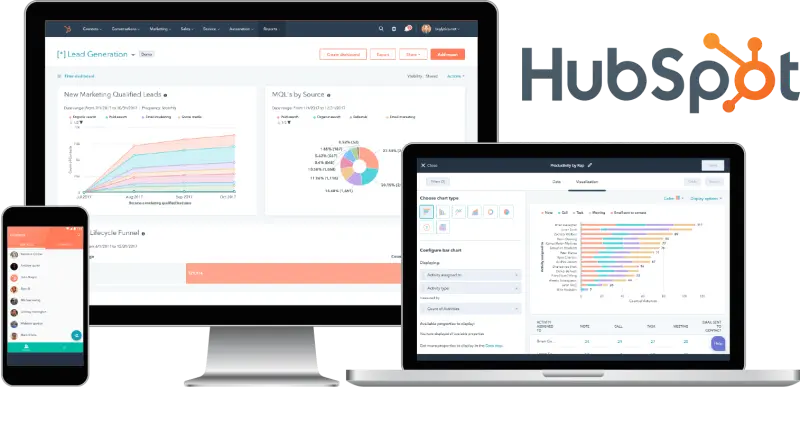
This is the most flexible and scalable setup. HubSpot decides when to send. Heltar decides what and how to send on WhatsApp.
There are two ways to connect them:
A direct Heltar integration inside HubSpot (connector)
A generic Webhook action in workflows that calls a Heltar endpoint
Heltar already supports integrations with HubSpot and custom webhooks, so both styles are possible on our platform.
Step 1 - Plan Your Alert
Pick one clear use case to start:
“Send a WhatsApp alert when a new high intent form is submitted.”
“Send a payment link on WhatsApp when a deal stage moves to ‘Payment Pending’.”
“Send a ticket resolution message when a support ticket is closed.”
Decide:
Which HubSpot object should trigger the alert (contact, deal, ticket)
Which WhatsApp template you will use
Which fields will fill into template variables (first name, order id, date, link, etc.)
Step 2, Create or Reuse a WhatsApp Template in Heltar
In Heltar:
Create a template for the alert.
Include variables wherever you need dynamic content.
Submit it for approval via Heltar.
Once approved, note down the template name and language code.
We will use these in the call from HubSpot.
Step 3, Build a Workflow in HubSpot
In HubSpot:
Go to Automation → Workflows.
Click Create workflow → From scratch.
Pick the right type, for example Deal based if you are sending alerts on stage changes.
Set an enrollment trigger, for example:
Deal stage is “Won”
Ticket status is “Closed”
Contact property “Lifecycle stage” becomes “Customer”
Turn on re-enrollment if it should fire again on future changes.
Now the workflow knows when to run.
Step 4, Add the Heltar Action or Webhook
If you have a direct Heltar action in your HubSpot account:
Click the + under your trigger.
Search for the Heltar action, for example “Send WhatsApp via Heltar”.
Choose the WhatsApp template you created.
Map HubSpot fields to template variables.
Map the phone field from the contact or deal to the WhatsApp recipient.
If you are using a generic webhook:
In the workflow, click + → Send a webhook.
Paste the secure Heltar webhook URL.
Set the method to POST.
Build a simple JSON body, for example:
{
  "phone": "{ { contact.phone } }",
  "template_name": "deal_won_update",
  "language": "en",
  "variables": {
    "first_name": "{ { contact.firstname } }",
    "deal_name": "{ { deal.dealname } }",
    "amount": "{ { deal.amount } }"
  }
}
Add any secret key or token Heltar gives you in the headers. On the Heltar side, we take this payload, call the WhatsApp Cloud API, and handle delivery.
Example Workflow, Notify a Lead When a Demo Is Booked
Let us put this together with a simple, real example.
Goal
Whenever a contact submits a “Book a demo” form in HubSpot, send them a WhatsApp confirmation with the date, time, and meeting link.
Steps
In HubSpot:
Create or identify the demo form.
Make sure it stores phone number and preferred meeting time.
In Heltar:
Create a template like:
“Hi { {1} }, your demo with { {2} } is booked for { {3} }. Here is your link: { {4} }.”
Get it approved.
In HubSpot:
Create a contact based workflow.
Trigger: “Form submission is Demo form.”
Add an action:
If using Heltar connector, choose the template and map:
{ {1} } = contact.firstname
{ {2} } = owner.firstname
{ {3} } = contact.demo_date
{ {4} } = contact.demo_link
If using webhook, build the JSON with the same mappings.
Turn the workflow on and test with a dummy contact.
Your lead now gets a WhatsApp message seconds after they book the demo, and your sales team looks fast and organised without doing anything manually.
How Heltar Helps You Run WhatsApp from HubSpot?
Heltar is a WhatsApp Business API provider built for these needs.
Shared inbox, roles, and assignments so sales can work from one place.
Automation inside the inbox, plus quick setup for keywords, menus, and forms. You can create a WhatsApp chatbot using a drag-and-drop, no-code chatbot builder. Just one AI prompt, and you have your automation ready to be deployed. You can't get this luxury on n8n/Zapier.
Template workflows for approval, variables, and safe bulk sends. You create templates and get them approved within seconds, ready to be launched as part of bulk messaging campaigns.
Campaigns and segments with schedules and rate control. Schedule and Fire any campaign in less than a minute, marketing made simple!
Live reports for delivery, reads, failures, leads, and outcomes.
If you want to connect HubSpot and WhatsApp without juggling multiple tools, book a quick demo with Heltar. We can review your current HubSpot setup, suggest the best alert flows to start with, and help you go live on WhatsApp in days, not months.